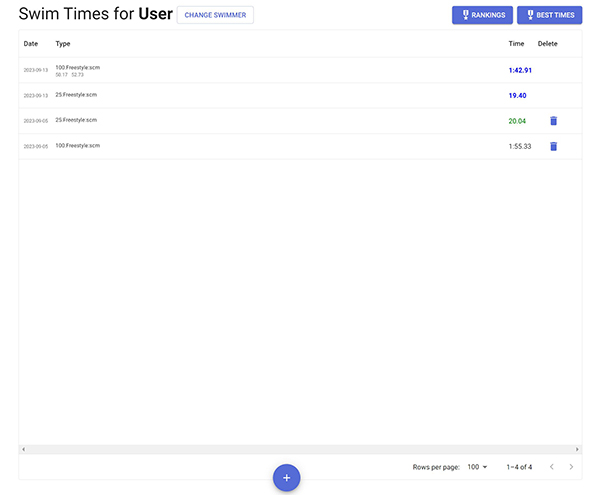
Welcome to swimming.imini.app, this will be a guide on how to use it. To login you have to click sign in with Google button to login with email. Once you login you will be directed to the home page, this is where all the times for a swimmer will be displayed. Blue times are records, green times are close to records. To change a swimmer you will click the change swimmer button, then type in the swimmer's name. If you don't have another swimmer don't worry, the system will automatically add a new swimmer.
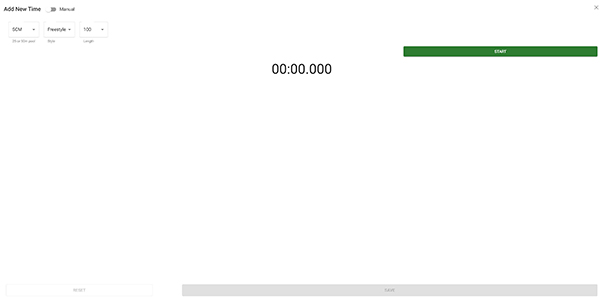
At the bottom of the Main page click the plus sign to create a new time. This will create a page to create times. There are three drop down boxes on page to create a new time. The first box is what is the distance of the pool (25m or 50m), the next box is for what is the style of the time, and the last box is for the distance needed to be swam. When you click on the start button it will begin timing the time. Click the lap button for each 50m, once the swimmer has finished swimmer swimming click stop, the click save to create a time.
At the top of the new time page there is a slide bar for entering a manual time. The pupose of a manual time is if you want to add a time that you couldn't record. There will be five drop down boxes, one for what date the time happened. The next one is for lcm (50m pool) or scm (25m pool), next is for style, after that it's distance, then in the last box it's how long did it take to swim the event.

Once all the data is set correctly, click the save button, and your time will be saved.

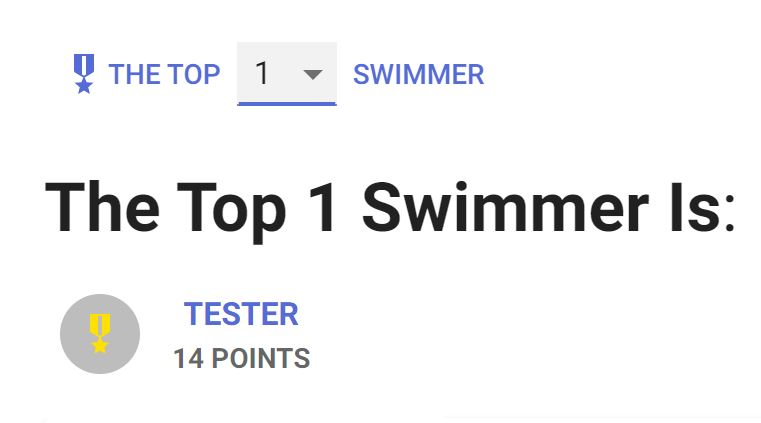
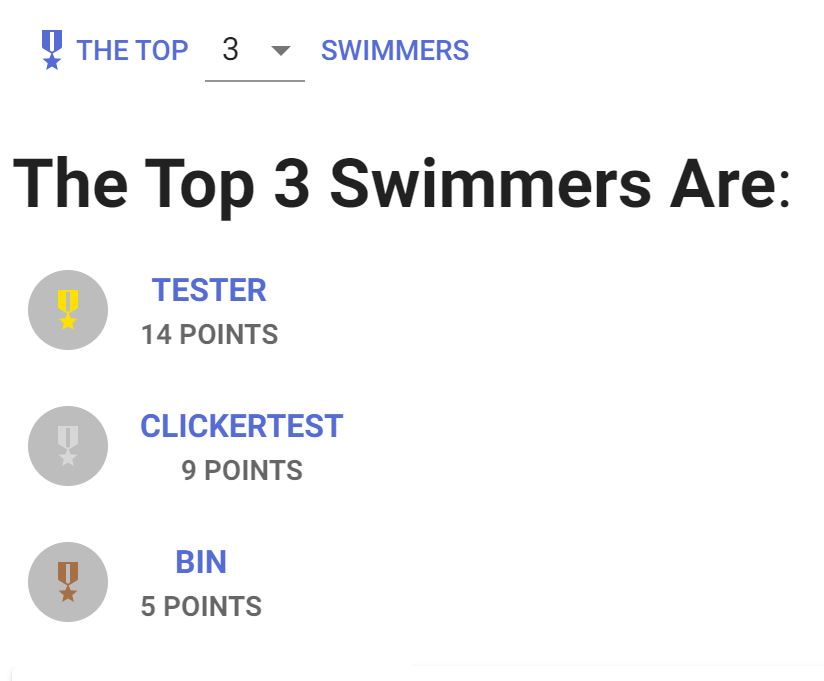
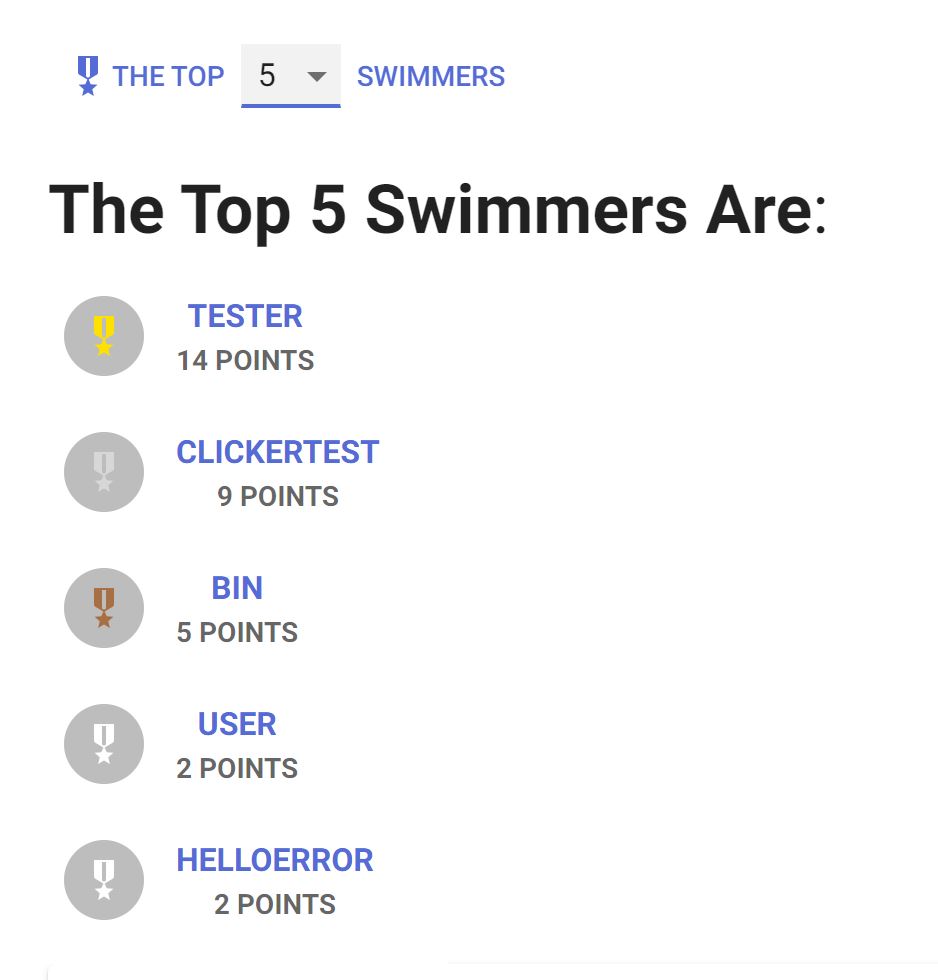
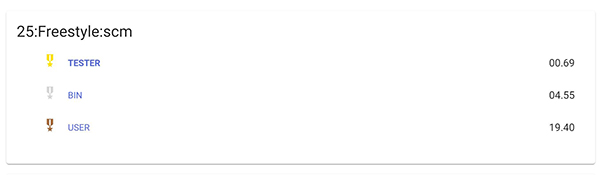
On the main page there is a ranking button, when you click on the button, it will open up a page. At the top of the page it will show you who's the best overall swimmer using the point system. For each event the swimmer with the fastest time gets 3 points, the person in second gets 2 points, and lastly third place gets 1 point. You can also change how many swimmer names can you see (up to the top 9).
 Unrealistic Times
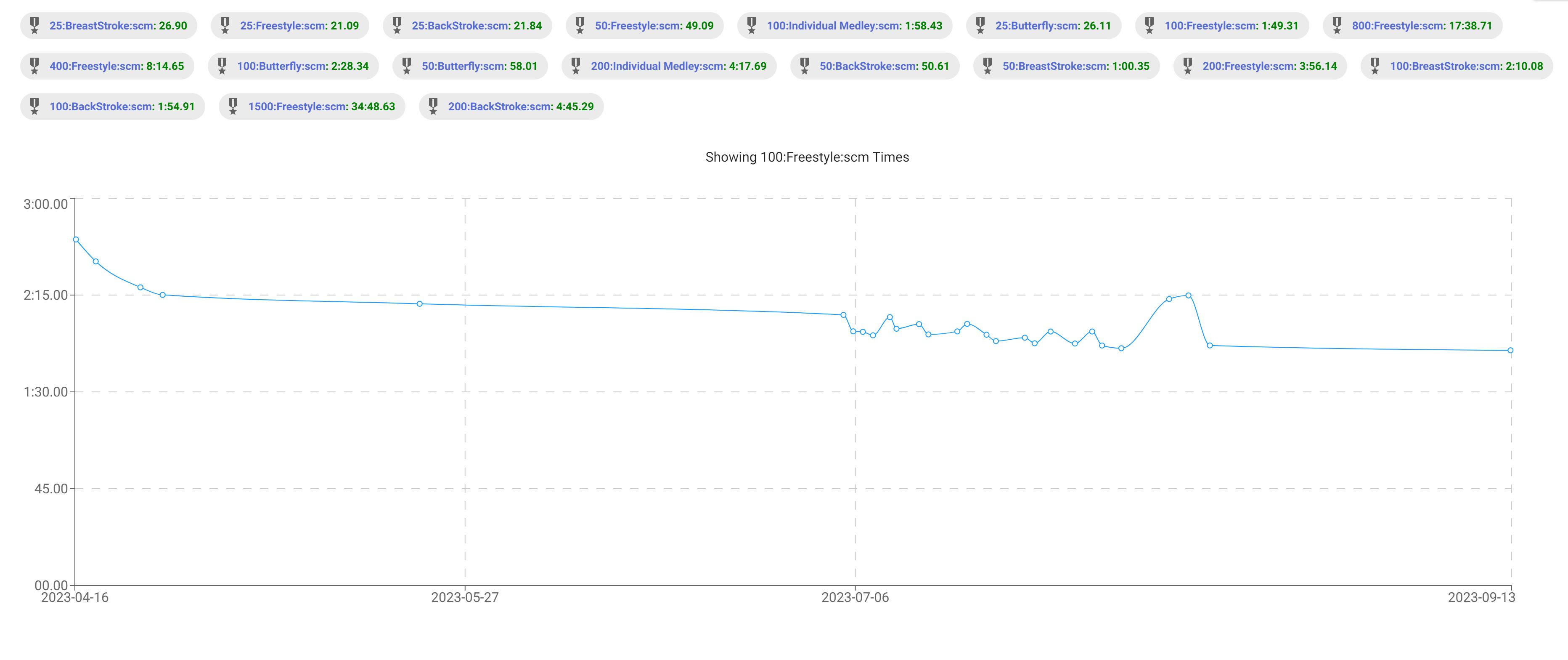
On the main page there is button called Best Times. When you click on the button it will open up a graph that shows your progress. There a bunch of buttons above the graph, when you click on a button the graph will show the event the button is for.